Connecting Your AWS Account

InfraMap connects to your AWS account using a secure, read-only IAM role. We never require or store your AWS credentials. Instead, you deploy a CloudFormation template that creates a transparent IAM role with explicit read-only permissions that you can inspect before creation.

How It Works

InfraMap uses a cross-account IAM role that you create in your AWS account. This role has:
  • Read-only access to the AWS services InfraMap needs to discover your resources
  • Explicit permissions that you can review before deployment
  • No write or delete permissions - InfraMap can only read your infrastructure
  • Transparent configuration - you see exactly what permissions are granted
InfraMap never stores your AWS credentials. All access is through the IAM role you create, which you can revoke or delete at any time.

Prerequisites

Before connecting your AWS account, ensure you have:
  • An AWS account with appropriate permissions to create IAM roles and CloudFormation stacks
  • Access to the AWS Console

Step-by-Step Connection

Step 1: Navigate to Connection Settings

After signing up, go to your account settings and click “Connect AWS Account” or navigate to the connection page.

Step 2: Launch CloudFormation Stack

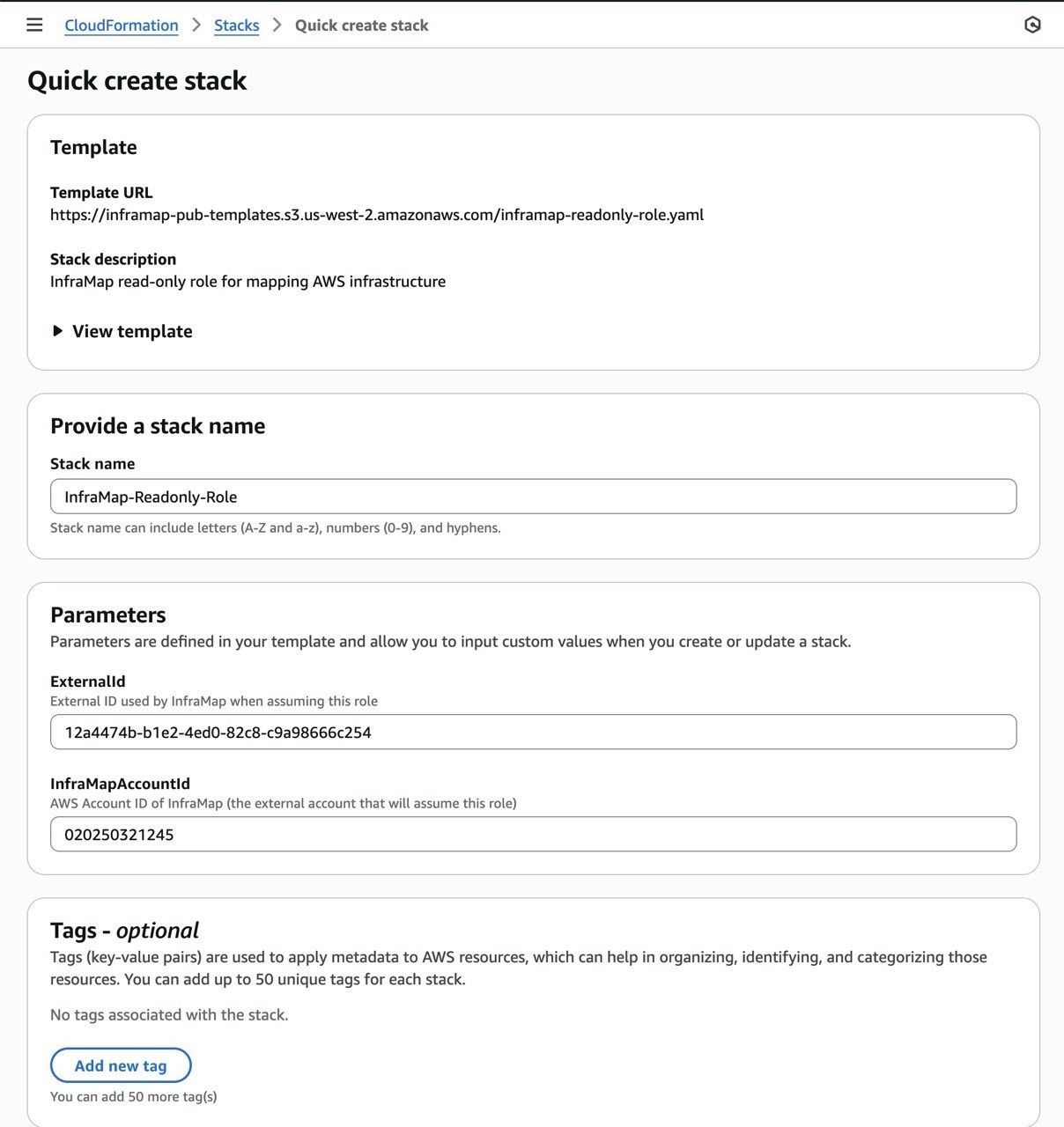
InfraMap provides a pre-configured CloudFormation template that you’ll deploy in your AWS account. Click the “Launch CloudFormation Stack” button, which will:
  1. Open the AWS CloudFormation Console in a new tab
  2. Pre-fill the stack template URL
  3. Pre-populate the necessary parameters

Step 3: Review the CloudFormation Template

Before creating the stack, you can review the CloudFormation template to see exactly what will be created:
  • IAM Role: A read-only role that InfraMap will assume
  • IAM Policy: Explicit read-only permissions for AWS services
  • Trust Policy: Allows InfraMap’s AWS account to assume the role
AWSTemplateFormatVersion: '2010-09-09'
Description: InfraMap read-only role for mapping AWS infrastructure

Parameters:
  InfraMapAccountId:
    Type: String
    Description: AWS Account ID of InfraMap (the external account that will assume this role)
  ExternalId:
    Type: String
    Description: External ID used by InfraMap when assuming this role

Resources:
  InfraMapReadOnlyRole:
    Type: AWS::IAM::Role
    Properties:
      RoleName: InfraMapReadOnlyRole
      AssumeRolePolicyDocument:
        Version: '2012-10-17'
        Statement:
          - Effect: Allow
            Principal:
              AWS: !Sub "arn:aws:iam::${InfraMapAccountId}:root"
            Action: "sts:AssumeRole"
            Condition:
              StringEquals:
                sts:ExternalId: !Ref ExternalId

      Policies:
        - PolicyName: InfraMapReadOnlyPolicy
          PolicyDocument:
            Version: '2012-10-17'
            Statement:
              - Sid: EC2ReadOnly
                Effect: Allow
                Action:
                  - "ec2:Describe*"
                  - "ec2:DescribeVolumes"
                  - "ec2:DescribeVolumeStatus"
                  - "ec2:DescribeVolumeAttribute"
                  - "ec2:DescribeSnapshots"
                  - "tag:GetResources"
                  - "tag:GetTagKeys"
                  - "tag:GetTagValues"
                Resource: "*"

              - Sid: CloudWatchMetrics
                Effect: Allow
                Action:
                  - "cloudwatch:GetMetricStatistics"
                  - "cloudwatch:GetMetricData"
                Resource: "*"

              - Sid: S3ReadOnly
                Effect: Allow
                Action:
                  - "s3:ListAllMyBuckets"
                  - "s3:GetBucketLocation"
                  - "s3:GetBucketTagging"
                  - "s3:GetEncryptionConfiguration"
                  - "s3:GetBucketVersioning"
                  - "s3:GetBucketLogging"
                  - "s3:GetBucketPublicAccessBlock"
                  - "s3:GetBucketAcl"
                  - "s3:GetBucketPolicy"
                  - "s3:GetBucketObjectLockConfiguration"
                  - "s3:GetReplicationConfiguration"
                  - "s3:GetLifecycleConfiguration"
                Resource: "*"

              - Sid: IAMReadOnly
                Effect: Allow
                Action:
                  - "iam:ListRoles"
                  - "iam:GetRole"
                  - "iam:ListRolePolicies"
                  - "iam:GetRolePolicy"
                  - "iam:ListAttachedRolePolicies"
                  - "iam:ListPolicies"
                  - "iam:GetPolicy"
                  - "iam:GetPolicyVersion"
                  - "iam:ListPolicyVersions"
                  - "iam:ListEntitiesForPolicy"
                  - "iam:ListInstanceProfilesForRole"
                  - "iam:GetInstanceProfile"
                  - "iam:ListInstanceProfiles"
                Resource: "*"

              - Sid: LambdaReadOnly
                Effect: Allow
                Action:
                  - "lambda:ListFunctions"
                  - "lambda:GetFunction"
                  - "lambda:GetFunctionConfiguration"
                  - "lambda:ListTags"
                  - "lambda:GetPolicy"
                  - "lambda:ListEventSourceMappings"
                  - "lambda:ListProvisionedConcurrencyConfigs"
                  - "lambda:GetFunctionConcurrency"
                Resource: "*"

              - Sid: CloudFrontReadOnly
                Effect: Allow
                Action:
                  - "cloudfront:ListDistributions"
                  - "cloudfront:GetDistribution"
                  - "cloudfront:GetDistributionConfig"
                  - "cloudfront:ListTagsForResource"
                Resource: "*"

              - Sid: APIGatewayReadOnly
                Effect: Allow
                Action:
                  - "apigateway:GET"
                Resource: "*"

              - Sid: ELBReadOnly
                Effect: Allow
                Action:
                  - "elasticloadbalancing:DescribeLoadBalancers"
                  - "elasticloadbalancing:DescribeListeners"
                  - "elasticloadbalancing:DescribeTargetGroups"
                  - "elasticloadbalancing:DescribeLoadBalancerAttributes"
                  - "elasticloadbalancing:DescribeTags"
                Resource: "*"

              - Sid: ExplicitDeny
                Effect: Deny
                Action:
                  - "kms:Decrypt"
                  - "ssm:GetParameter"
                  - "ssm:GetParameters"
                  - "secretsmanager:GetSecretValue"
                  - "logs:GetLogEvents"
                Resource: "*"

Outputs:
  RoleArn:
    Description: ARN of the InfraMap read-only role
    Value: !GetAtt InfraMapReadOnlyRole.Arn

Step 4: Create the Stack

  1. Review the stack configuration. All fields are pre-filled.
  2. Acknowledge that CloudFormation may create IAM resources
  3. Click “Create stack”
The stack creation typically takes less than a minute.

Step 5: Copy the IAM Role ARN

Once the CloudFormation stack is created successfully:
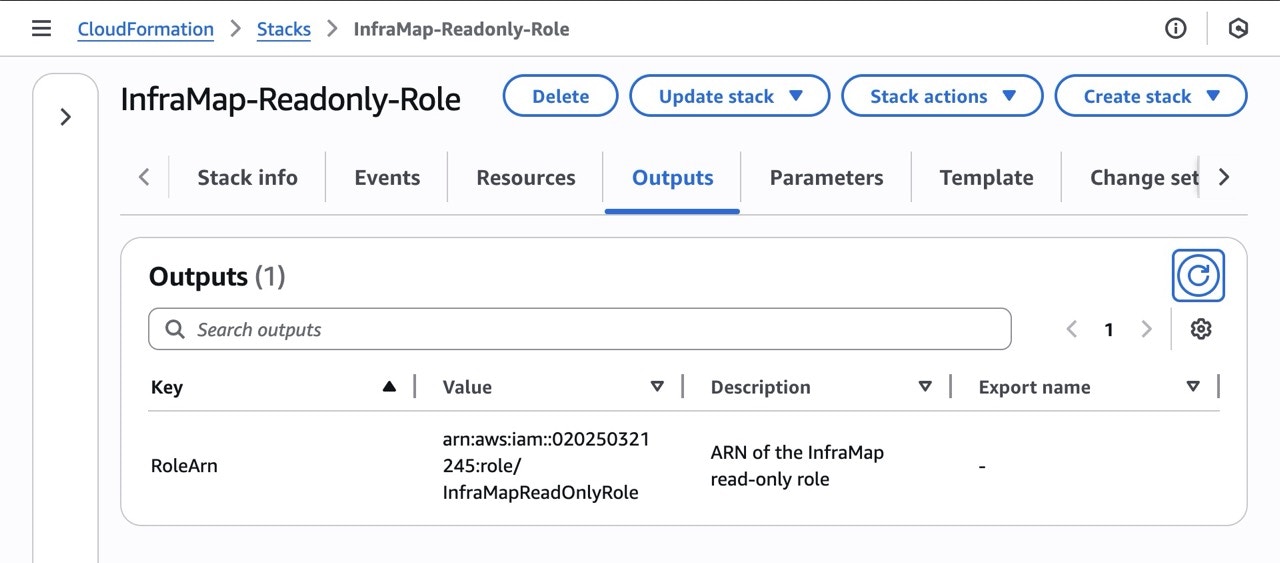
  1. Go to the Outputs tab of your CloudFormation stack
  2. Copy the IAM Role ARN (it will look like: arn:aws:iam::123456789012:role/inframap-readonly-role)
  3. Return to the InfraMap connection page
  4. Paste the IAM Role ARN into the connection form
Step 6: Complete the Connection

After pasting the IAM Role ARN:
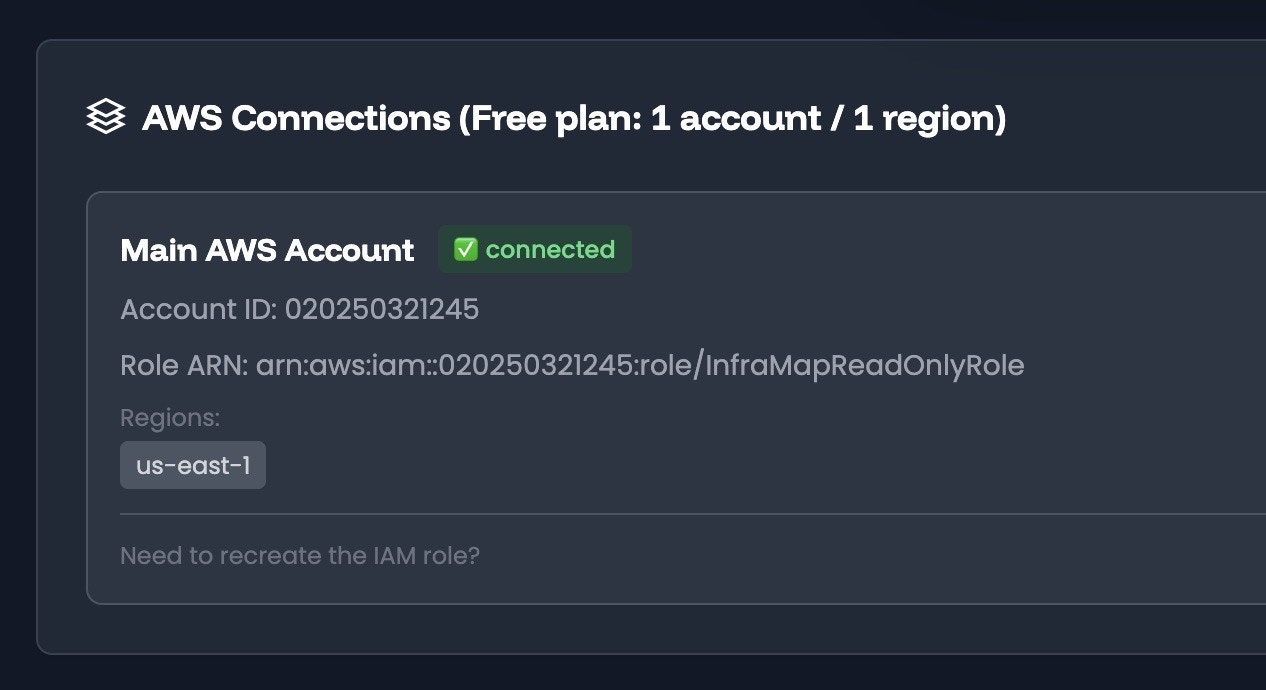
  1. Enter a connection name of your choice
  2. Select regions you wish to cover (1 region for Free plan)
  3. Click “Connect”
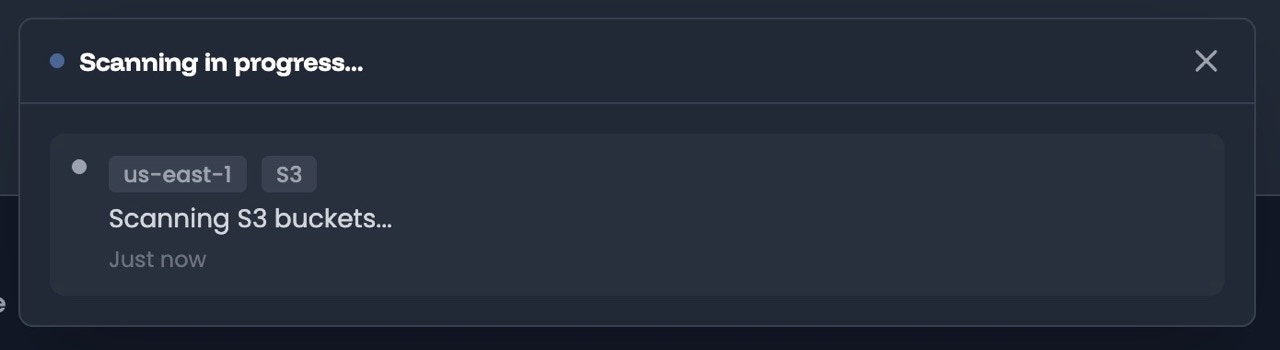
  4. InfraMap will verify the connection by assuming the role and will then kick off a scan of your infrastructure.
Next Steps

Once your AWS account is connected and first scan completed, Explore your infrastructure map to see your resources visualized.