

Overview
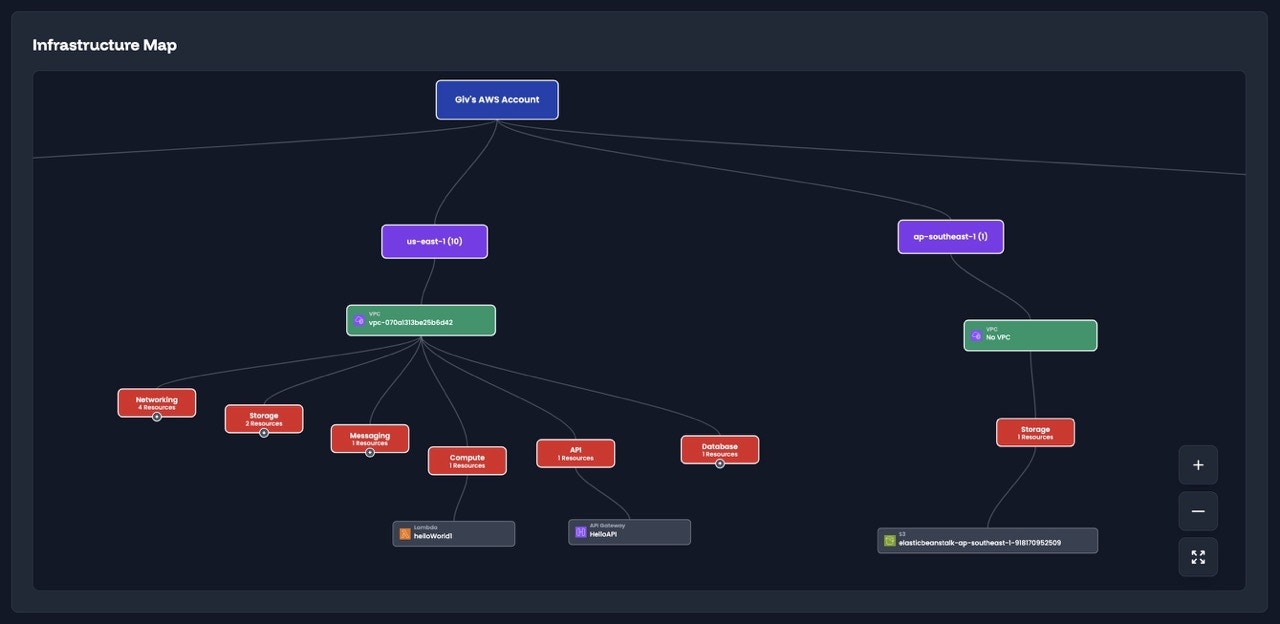
Infrastructure maps visualize your AWS resources as an interactive graph, showing:- Resource relationships - How resources connect and depend on each other
- Hierarchical organization - Accounts, regions, VPCs, and resource groups
- Resource details - Zoom in to see individual resources and their configurations
- Multi-dimensional views - Organize by account, region, service, or custom groupings
Maps are automatically generated and updated based on your infrastructure scans. Changes in your AWS environment are reflected in the maps as scans complete.
Multi-Account and Multi-Region Views
Organization-Wide View
Start with a high-level view of your entire AWS organization:- All accounts - See every AWS account connected to InfraMap
- Account relationships - Visualize how accounts are organized
- Cross-account dependencies - Identify resources that span multiple accounts
- Aggregate metrics - Total resources, costs, and security findings across all accounts
Account-Level View
Zoom into a specific AWS account to see:- All regions - Every AWS region where resources are deployed
- Regional distribution - Visual representation of where resources are located
- Account-specific resources - All resources within that account
- Account metrics - Cost, security, and resource counts for the account
Region-Level View
Focus on a specific AWS region to explore:- VPCs and networking - All Virtual Private Clouds in the region
- Regional resources - Resources deployed in that region
- Regional relationships - How resources connect within the region
- Cross-region connections - Resources that connect to other regions
Hierarchical Navigation
InfraMap’s maps support hierarchical navigation, allowing you to drill down from high-level views to specific resources.Zoom and Expand
Navigate through different levels of detail:- Organization level - View all accounts
- Account level - Expand to see all regions in an account
- Region level - Expand to see all VPCs and resource groups
- VPC level - Expand to see resources within a VPC
- Resource group level - Expand to see individual resources
- Resource level - View individual resource details and relationships
Resource Groups
Organize and view resources by:- Service type - Group by EC2, RDS, Lambda, S3, etc.
- VPC - Resources within specific Virtual Private Clouds
- Tags - Custom groupings based on AWS tags
- Security groups - Resources sharing security configurations
- Application - Resources belonging to the same application
Resources
View detailed information about individual resources in the map.
Cost Analysis
See cost data overlaid on your infrastructure maps.
Resource Relationships
Connection Visualization
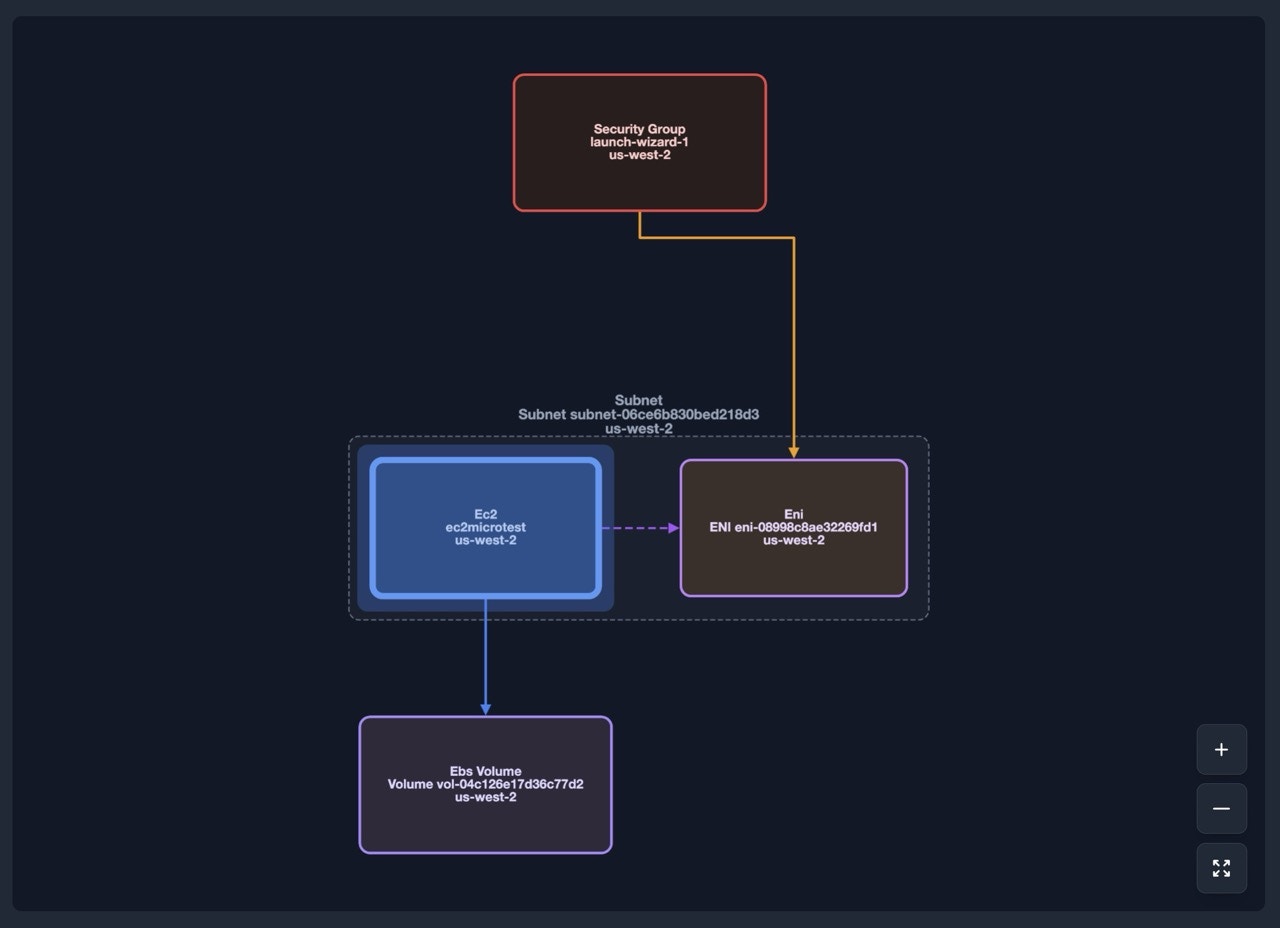
See how resources connect to each other:- Network connections - Security groups, subnets, and VPC relationships
- Service dependencies - Which services depend on which resources
- Data flows - How data moves between resources
- Attachment relationships - Direct attachments like EBS volumes to EC2 instances
Example Relationships
Lambda Functions:- See which API Gateways are attached to Lambda functions
- View Event sources like SQS queues or SNS topics
- Identify IAM roles and VPC configurations used by functions
- Track CloudWatch Logs and X-Ray traces associated with functions
- See which EBS volumes are attached to each instance
- View Security Groups and Network Interfaces
- Identify Load Balancers that route traffic to instances
- Track Auto Scaling Groups and Launch Templates
- View Subnet Groups and Security Groups protecting databases
- See Read Replicas and their relationships
- Identify Parameter Groups and Option Groups
- Track Backup configurations and Snapshots
- See CloudFront Distributions using buckets as origins
- View Lambda functions triggered by bucket events
- Identify IAM policies and Bucket Policies controlling access
- Track Versioning and Replication configurations
Interactive Exploration
- Click to expand - Click on any resource or group to see its relationships
- Hover for details - Hover over resources to see quick information
- Filter by relationship - Show only resources connected to a specific resource
- Follow connections - Navigate along relationship paths
- Highlight dependencies - Highlight all resources that depend on a selected resource
Use Cases
Infrastructure Discovery
- Understand your infrastructure - Get a complete picture of your AWS environment
- Find orphaned resources - Identify resources that aren’t connected to anything
- Discover dependencies - Understand what depends on critical resources
- Document architecture - Use maps as documentation for your infrastructure
Troubleshooting
- Trace connections - Follow relationships to find the source of issues
- Identify bottlenecks - See where resources are concentrated
- Find misconfigurations - Spot resources with unusual connection patterns
- Understand impact - See what would be affected by changes
Cost Optimization
- Identify expensive regions - See where costs are concentrated
- Find unused resources - Spot resources with no connections
- Optimize data transfer - See cross-region and cross-account data flows
- Right-size resources - Understand resource relationships before resizing
Security Analysis
- Review network security - See security group relationships
- Identify exposed resources - Find resources with public access
- Track IAM usage - See which resources use which IAM roles
- Audit configurations - Verify security settings across resources
Next Steps
- Explore your resources to see detailed resource information
- Review cost analysis with cost data on maps
- Check security findings visualized on infrastructure maps
- Connect additional accounts to see multi-account views