> ## Documentation Index
> Fetch the complete documentation index at: https://docs.inframap.cloud/llms.txt
> Use this file to discover all available pages before exploring further.

# Connection

> Connect your AWS account to InfraMap using our secure CloudFormation template. No credentials required.

# Connecting Your AWS Account

InfraMap connects to your AWS account using a secure, read-only IAM role. We **never require or store your AWS credentials**. Instead, you deploy a CloudFormation template that creates a transparent IAM role with explicit read-only permissions that you can inspect before creation.

## How It Works

InfraMap uses a **cross-account IAM role** that you create in your AWS account. This role has:

* **Read-only access** to the AWS services InfraMap needs to discover your resources
* **Explicit permissions** that you can review before deployment
* **No write or delete permissions** - InfraMap can only read your infrastructure
* **Transparent configuration** - you see exactly what permissions are granted

<Warning>
  InfraMap never stores your AWS credentials. All access is through the IAM role you create, which you can revoke or delete at any time.
</Warning>

<div style={{ position: 'relative', paddingBottom: '56.25%', height: 0, overflow: 'hidden', maxWidth: '100%' }}>
  <iframe style={{ position: 'absolute', top: 0, left: 0, width: '100%', height: '100%' }} src="https://www.youtube.com/embed/uf4YZBGz1b4?si=LIXgZzcAah7Sg46Y" title="YouTube video player" frameBorder="0" allow="accelerometer; autoplay; clipboard-write; encrypted-media; gyroscope; picture-in-picture; web-share" referrerPolicy="strict-origin-when-cross-origin" allowFullScreen />
</div>

## Prerequisites

Before connecting your AWS account, ensure you have:

* An AWS account with appropriate permissions to create IAM roles and CloudFormation stacks
* Access to the AWS Console

## Step-by-Step Connection

### Step 1: Navigate to Connection Settings

<img src="https://mintcdn.com/inframap/0TTW5rrA4RXRwAwv/assets/images/connect.jpeg?fit=max&auto=format&n=0TTW5rrA4RXRwAwv&q=85&s=a09982c3e4f97e0d41eca02ee42f6fd0" width="1155" height="1280" data-path="assets/images/connect.jpeg" />

After signing up, go to your account settings and click **"Connect AWS Account"** or navigate to the connection page.

### Step 2: Launch CloudFormation Stack

InfraMap provides a pre-configured CloudFormation template that you'll deploy in your AWS account. Click the **"Launch CloudFormation Stack"** button, which will:

1. Open the AWS CloudFormation Console in a new tab
2. Pre-fill the stack template URL
3. Pre-populate the necessary parameters
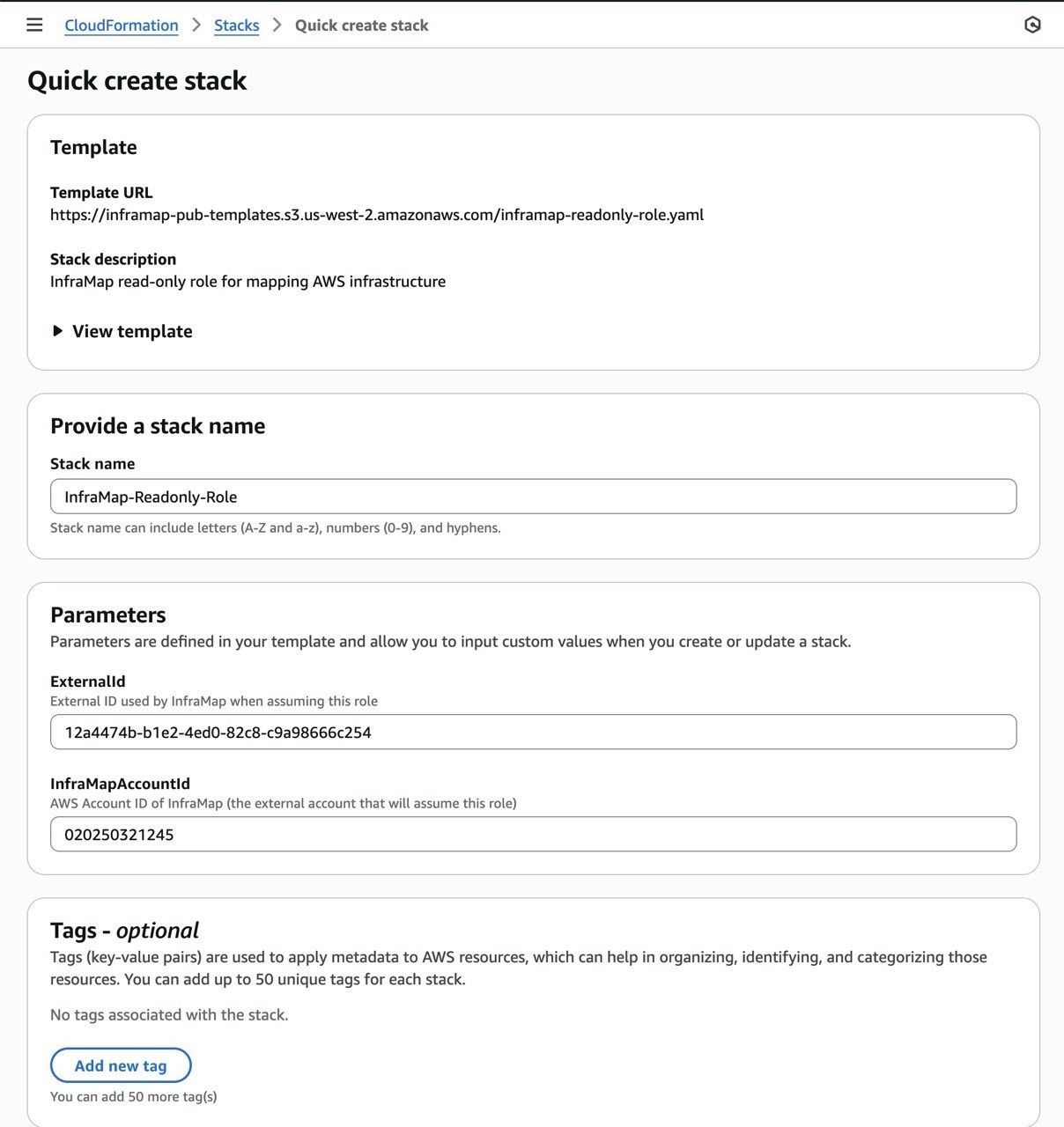
<img src="https://mintcdn.com/inframap/0TTW5rrA4RXRwAwv/assets/images/stack.jpeg?fit=max&auto=format&n=0TTW5rrA4RXRwAwv&q=85&s=79e3a733e2be1e1b8f5584cb335973b8" width="1208" height="1280" data-path="assets/images/stack.jpeg" />

### Step 3: Review the CloudFormation Template

Before creating the stack, you can review the CloudFormation template to see exactly what will be created:

* **IAM Role**: A read-only role that InfraMap will assume
* **IAM Policy**: Explicit read-only permissions for AWS services
* **Trust Policy**: Allows InfraMap's AWS account to assume the role
<Accordion title="View complete CloudFormation IAM Role Template">
  ```yaml theme={null}
  AWSTemplateFormatVersion: '2010-09-09'
  Description: InfraMap read-only role for mapping AWS infrastructure

  Parameters:
    InfraMapAccountId:
      Type: String
      Description: AWS Account ID of InfraMap (the external account that will assume this role)
    ExternalId:
      Type: String
      Description: External ID used by InfraMap when assuming this role

  Resources:
    InfraMapReadOnlyRole:
      Type: AWS::IAM::Role
      Properties:
        RoleName: InfraMapReadOnlyRole
        AssumeRolePolicyDocument:
          Version: '2012-10-17'
          Statement:
            - Effect: Allow
              Principal:
                AWS: !Sub "arn:aws:iam::${InfraMapAccountId}:root"
              Action: "sts:AssumeRole"
              Condition:
                StringEquals:
                  sts:ExternalId: !Ref ExternalId

        Policies:
          - PolicyName: InfraMapReadOnlyPolicy
            PolicyDocument:
              Version: '2012-10-17'
              Statement:
                - Sid: EC2ReadOnly
                  Effect: Allow
                  Action:
                    - "ec2:Describe*"
                    - "ec2:DescribeVolumes"
                    - "ec2:DescribeVolumeStatus"
                    - "ec2:DescribeVolumeAttribute"
                    - "ec2:DescribeSnapshots"
                    - "tag:GetResources"
                    - "tag:GetTagKeys"
                    - "tag:GetTagValues"
                  Resource: "*"

                - Sid: CloudWatchMetrics
                  Effect: Allow
                  Action:
                    - "cloudwatch:GetMetricStatistics"
                    - "cloudwatch:GetMetricData"
                  Resource: "*"

                - Sid: S3ReadOnly
                  Effect: Allow
                  Action:
                    - "s3:ListAllMyBuckets"
                    - "s3:GetBucketLocation"
                    - "s3:GetBucketTagging"
                    - "s3:GetEncryptionConfiguration"
                    - "s3:GetBucketVersioning"
                    - "s3:GetBucketLogging"
                    - "s3:GetBucketPublicAccessBlock"
                    - "s3:GetBucketAcl"
                    - "s3:GetBucketPolicy"
                    - "s3:GetBucketObjectLockConfiguration"
                    - "s3:GetReplicationConfiguration"
                    - "s3:GetLifecycleConfiguration"
                  Resource: "*"

                - Sid: IAMReadOnly
                  Effect: Allow
                  Action:
                    - "iam:ListRoles"
                    - "iam:GetRole"
                    - "iam:ListRolePolicies"
                    - "iam:GetRolePolicy"
                    - "iam:ListAttachedRolePolicies"
                    - "iam:ListPolicies"
                    - "iam:GetPolicy"
                    - "iam:GetPolicyVersion"
                    - "iam:ListPolicyVersions"
                    - "iam:ListEntitiesForPolicy"
                    - "iam:ListInstanceProfilesForRole"
                    - "iam:GetInstanceProfile"
                    - "iam:ListInstanceProfiles"
                  Resource: "*"

                - Sid: LambdaReadOnly
                  Effect: Allow
                  Action:
                    - "lambda:ListFunctions"
                    - "lambda:GetFunction"
                    - "lambda:GetFunctionConfiguration"
                    - "lambda:ListTags"
                    - "lambda:GetPolicy"
                    - "lambda:ListEventSourceMappings"
                    - "lambda:ListProvisionedConcurrencyConfigs"
                    - "lambda:GetFunctionConcurrency"
                  Resource: "*"

                - Sid: CloudFrontReadOnly
                  Effect: Allow
                  Action:
                    - "cloudfront:ListDistributions"
                    - "cloudfront:GetDistribution"
                    - "cloudfront:GetDistributionConfig"
                    - "cloudfront:ListTagsForResource"
                  Resource: "*"

                - Sid: APIGatewayReadOnly
                  Effect: Allow
                  Action:
                    - "apigateway:GET"
                  Resource: "*"

                - Sid: ELBReadOnly
                  Effect: Allow
                  Action:
                    - "elasticloadbalancing:DescribeLoadBalancers"
                    - "elasticloadbalancing:DescribeListeners"
                    - "elasticloadbalancing:DescribeTargetGroups"
                    - "elasticloadbalancing:DescribeLoadBalancerAttributes"
                    - "elasticloadbalancing:DescribeTags"
                  Resource: "*"

                - Sid: ExplicitDeny
                  Effect: Deny
                  Action:
                    - "kms:Decrypt"
                    - "ssm:GetParameter"
                    - "ssm:GetParameters"
                    - "secretsmanager:GetSecretValue"
                    - "logs:GetLogEvents"
                  Resource: "*"

  Outputs:
    RoleArn:
      Description: ARN of the InfraMap read-only role
      Value: !GetAtt InfraMapReadOnlyRole.Arn
  ```
</Accordion>

### Step 4: Create the Stack

1. Review the stack configuration. All fields are pre-filled.
2. Acknowledge that CloudFormation may create IAM resources
3. Click **"Create stack"**

The stack creation typically takes less than a minute.

### Step 5: Copy the IAM Role ARN

Once the CloudFormation stack is created successfully:

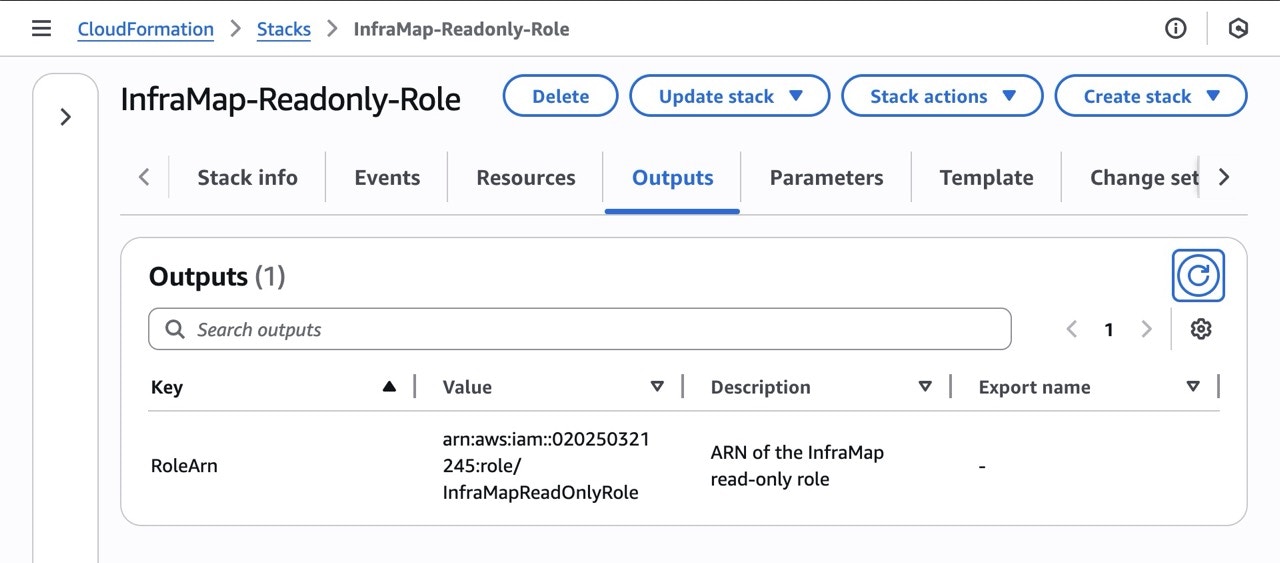
1. Go to the **Outputs** tab of your CloudFormation stack
2. Copy the **IAM Role ARN** (it will look like: `arn:aws:iam::123456789012:role/inframap-readonly-role`)
3. Return to the InfraMap connection page
4. Paste the IAM Role ARN into the connection form

<img src="https://mintcdn.com/inframap/0TTW5rrA4RXRwAwv/assets/images/arn.jpeg?fit=max&auto=format&n=0TTW5rrA4RXRwAwv&q=85&s=68b3735b91659ddb50d5ffdab46c5e2c" width="1280" height="563" data-path="assets/images/arn.jpeg" />

### Step 6: Complete the Connection

After pasting the IAM Role ARN:

1. Enter a connection name of your choice
2. Select regions you wish to cover (1 region for Free plan)
3. Click **"Connect"**
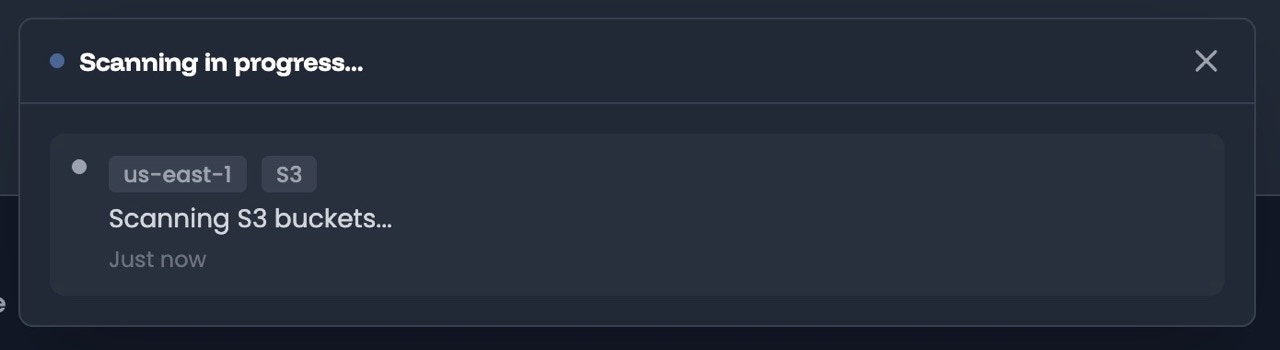
4. InfraMap will verify the connection by assuming the role and will then kick off a scan of your infrastructure.
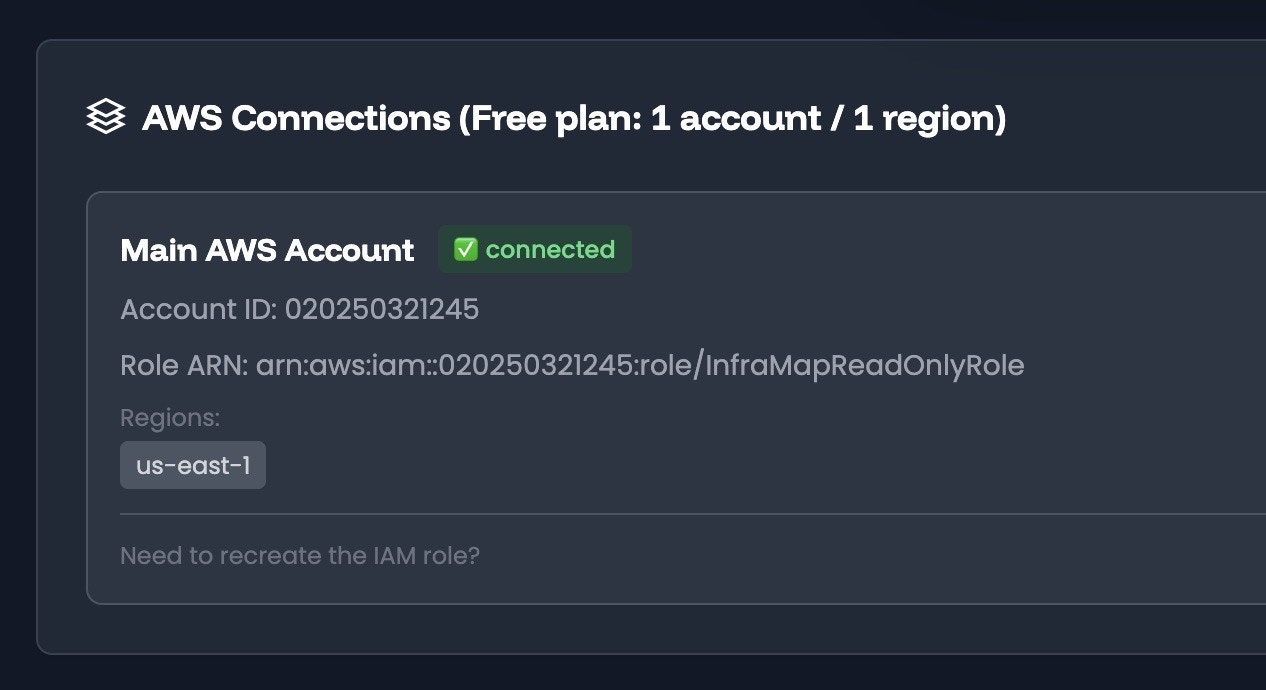
<img src="https://mintcdn.com/inframap/0TTW5rrA4RXRwAwv/assets/images/connected.jpeg?fit=max&auto=format&n=0TTW5rrA4RXRwAwv&q=85&s=4895e0f25fdf2044a9a8a62e545554e7" width="1266" height="690" data-path="assets/images/connected.jpeg" />

<img src="https://mintcdn.com/inframap/0TTW5rrA4RXRwAwv/assets/images/scanning.jpeg?fit=max&auto=format&n=0TTW5rrA4RXRwAwv&q=85&s=b840e891c2bd1c98e47776714485205e" width="1280" height="350" data-path="assets/images/scanning.jpeg" />

## Next Steps

Once your AWS account is connected and first scan completed, [Explore your infrastructure map](/features/maps) to see your resources visualized.
